Session Groups
Session Groups is where you find the assessment work you have started. A group bundles together the per-agent sessions that belong to a single piece of work: one chat conversation, one assessment run, or one direct MCP connection. Rather than scanning a flat list of individual sessions, you start from the group — the conversation or run as a whole — and drill into the individual sessions underneath it when you need detail.
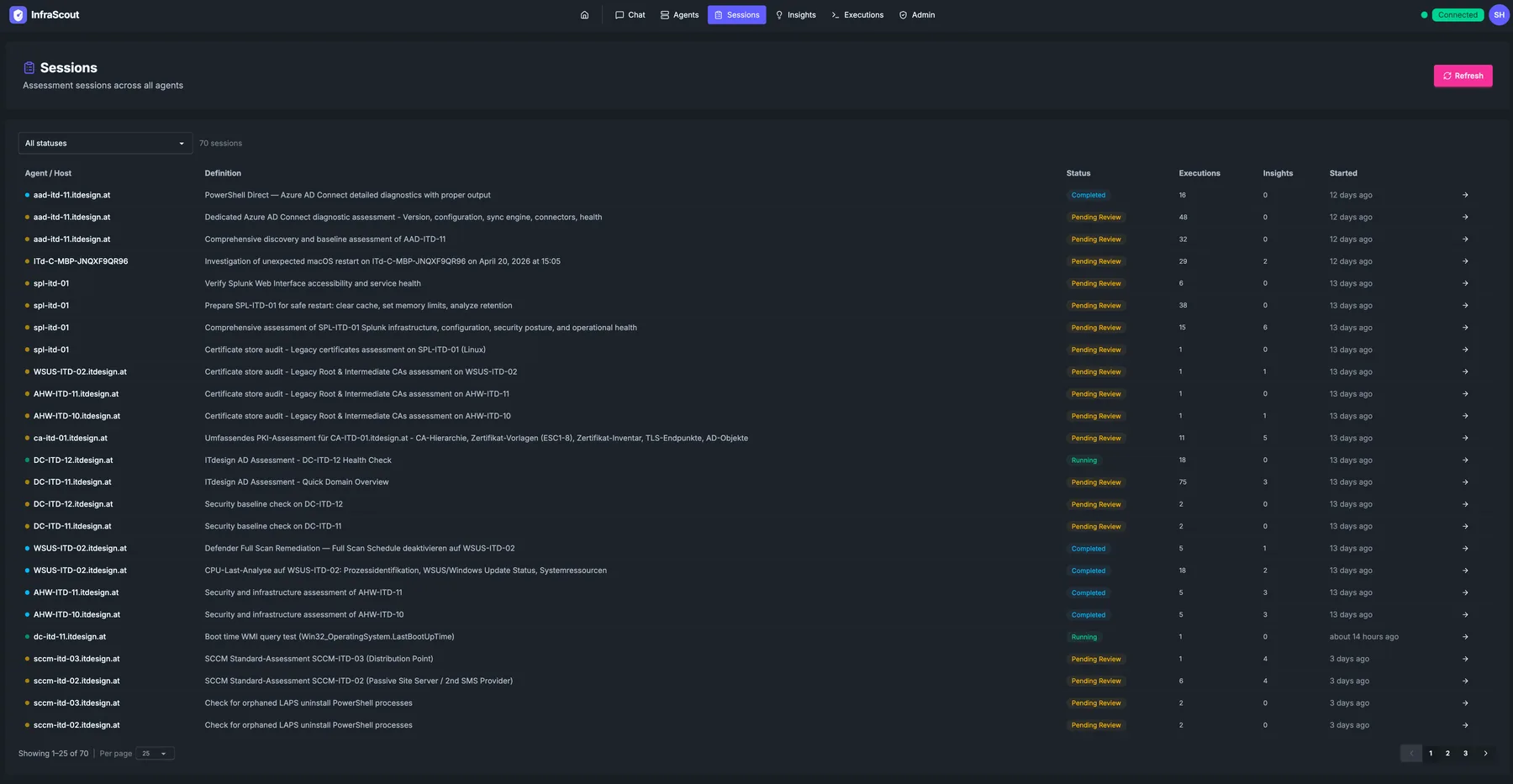
Reading the list
Each group appears as a card, newest activity first. The card leads with a title — the group summary, the linked chat title, or a short identifier when neither is set — alongside two badges: one for the kind of work and one for the current status. Below the title you see who started the group and when, a row of dots summarizing the sessions it contains, and the total session count. On the right, the card shows how long the group has been running (or how long it ran, once it has ended).
A strip of counters above the list tallies the groups currently shown by status — Active, Completed, Interrupted, and Failed — so you can gauge the shape of the page at a glance. Use the Refresh button in the header to reload, and the pagination control at the bottom to move through pages.
Filtering by status
The status tabs narrow the list to a single lifecycle state. A group is Active while work is still in progress, Completed once the work finished normally, Interrupted when it was stopped before finishing, and Failed when it ended on an unrecoverable error. The default All tab shows every state together.
INFO
The stopped-early state is labeled Interrupted, not "Cancelled". Ending a chat conversation, for example, closes its group and interrupts any agent sessions that were still running.
Filtering by kind
The kind tabs separate groups by where the work originated:
- Chat — work driven through a chat conversation in the portal.
- Manual — a direct MCP connection from an external client, where the group is created automatically for the connection.
- Agentic — an automated assessment run.
Leave the kind filter on Any kind to see all three together. Status and kind filters combine, so you can, for example, view only failed agentic runs.
Drilling into a group
Open a group to see its lifecycle and the sessions it contains. The detail view shows a timeline of how the group progressed, and — for chat-based groups — a link to the underlying conversation so you can jump straight to the transcript that produced the work.
The Agent runs section lists each individual session in the group. Every entry shows the host the session ran against, how many commands it executed, when it was last active, and the session's own status. For an active chat group, the detail view also offers a control to end the conversation, which closes the group and interrupts any sessions still running.
Drilling into a session
Select a session from the group to open its detail page. The header shows the host, the session status, and a one-line description of what the session was about. Two tabs organize the session's record:
- Executions — every command the session ran against the agent, with its output.
- Insights — the findings the session produced.
The transcript that drove the work lives with the linked chat conversation, reachable from the group detail view; the session page itself focuses on what ran on the agent and what it found.
Visibility
You see the groups and sessions tied to the work you started. The list is scoped to your own activity, and the executions shown inside a session are likewise scoped to your own actions. If you need to review work started by someone else, an administrator can open it from the audit area of the admin portal.