Groups (Admin)
The Groups tab lists the Entra security groups InfraScout discovers through the configured connector. These groups are the unit of access control across the portal: visibility on an agent, agent group, playbook, tool group, or AI integration is granted by naming one or more of these groups, and anyone who is a member of a named group can see the resource. This page is where you confirm which groups exist, who belongs to them, and where you trigger an on-demand recompute of the visibility those groups feed.
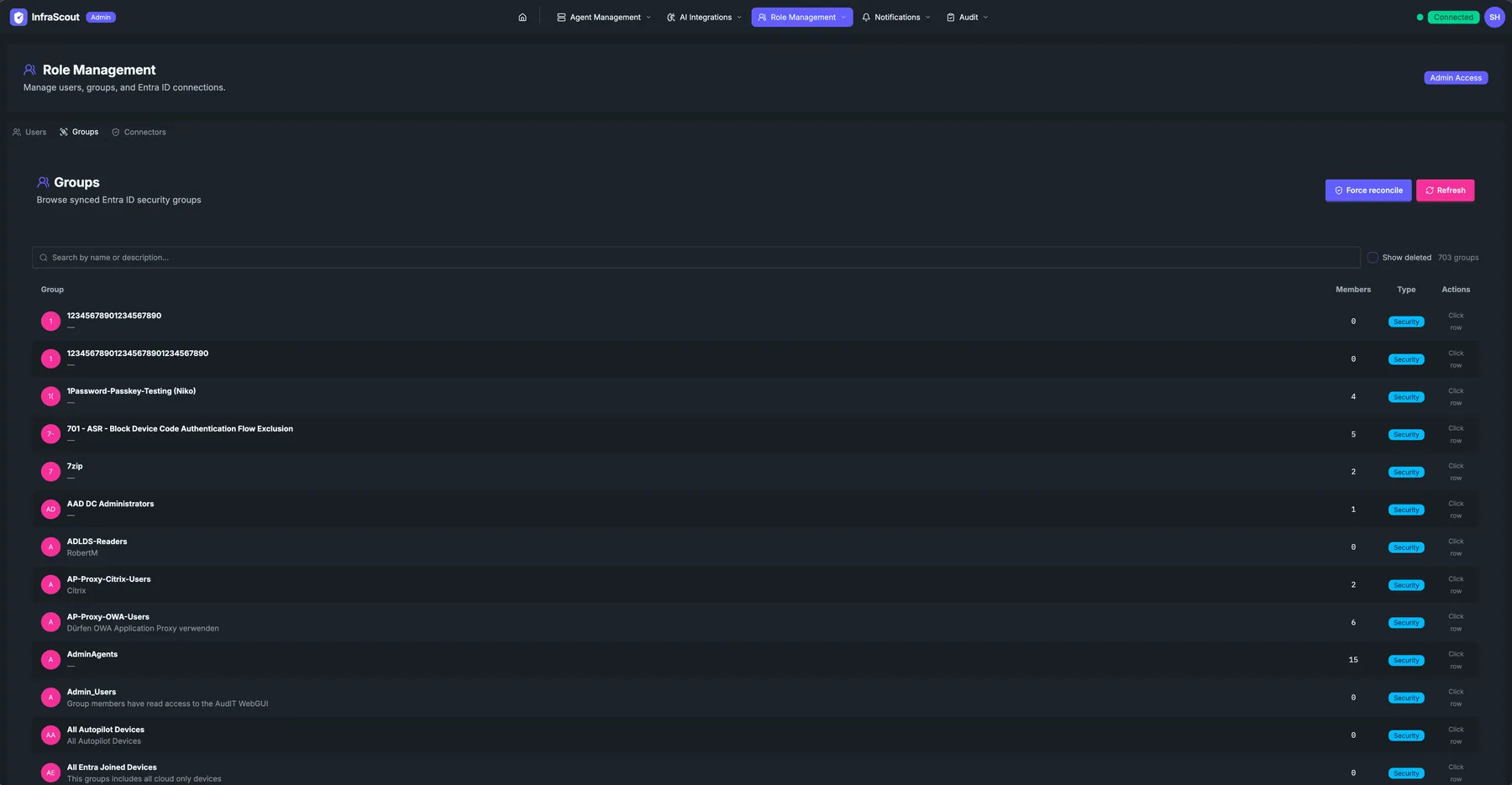
Layout
The page sits under the Role Management header alongside Connectors, Users, and Service Accounts in the tab strip. The description line under the heading reads "Browse synced Entra ID security groups."
Two header buttons sit above the table. Force reconcile recomputes inherited visibility across the tenant; Refresh reloads the table. A free-text search matches group name or description, a Show deleted toggle reveals soft-deleted groups, and the total count (N groups) reflects the active filter.
Table
Each row shows the group at a glance, and the whole row is clickable: selecting it opens a read-only detail panel rather than an inline editor. The columns are deliberately spare.
- Group — display name with an avatar, and the group's description underneath when Entra provides one.
- Members — the current member count from the last sync.
- Type — a chip reading Security for security-enabled groups or Group otherwise, and Deleted for soft-deleted rows.
- Actions — a Click row affordance; there are no per-row buttons.
The table paginates rather than scrolling endlessly. A per-page selector offers 25, 50, or 100 rows, and the footer shows the visible range against the total.
Group detail
Clicking a row opens a detail panel. It is read-only — you inspect a group here, you do not edit its Entra membership from InfraScout.
The panel shows the group's object ID, its type (Security Group or Group), and the time of the last successful sync. Below that, the members list pages in the users who belong to the group, each with their display name, user principal name, and an Enabled or Disabled badge. When a group has more members than the first page, a Load more control fetches the next batch and shows progress against the member total.
How groups grant visibility
InfraScout uses a deliberately narrow access model, and these groups are the only axis it turns on.
Visibility is closed by default: a resource with no groups assigned is visible to admins only. Assign one or more security groups to it and members of those groups can see it as well. To make a resource visible tenant-wide, mark it Everyone — an explicit choice that behaves like any other principal in the model. There are no deny rules and no nested-group expansion; membership in a named group, or the Everyone marker, is what grants access, nothing else.
Admins always bypass visibility entirely. A user with the Admin role sees every resource regardless of which groups are assigned, which is why the reconcile and audit tooling on this page is admin-facing.
Visibility flows downward through ownership. When you assign groups to an agent group, every agent in that group inherits those groups additively on top of any it carries directly, and an agent group marked Everyone makes its member agents tenant-visible the same way. Change an agent group's assigned groups and the member agents pick up the new inherited set; the Agent Groups page is where those assignments live.
Open up your tenant after the closed-by-default change
Non-admin users see nothing until you scope your resources. Walk each tenant once:
- Mark the default AI provider connection Everyone, or scope it to groups, so users can pick a connection.
- Mark or scope the standard tool groups and playbooks your users work with day to day.
- Scope the agent groups — member agents inherit automatically, so this pass covers most of the fleet.
- Turn on block inheritance for sensitive hosts, and optionally give each one a narrow group of its own.
Background and rationale: Resource Visibility Is Now Closed by Default.
Block inheritance
Inheritance is what makes group-level scoping worth doing, but it is the wrong answer for a sensitive host that sits inside an otherwise broadly visible group — a pentest VM in Windows Servers, say, or a jump box in All Hosts. Turning on block inheritance for that individual agent stops it inheriting from its groups entirely: it stays hidden even when a parent group is marked Everyone, and shows only to admins or to the narrow group you assign to the agent directly. Block inheritance applies to agents only.
Reading the visibility shield
Every visibility-controlled resource carries a shield button in its list view, and the icon tells you where the resource stands without opening anything. A globe means Everyone — visible tenant-wide. A shield means the resource is scoped to specific groups. A lock means admins only, the default state for anything nobody has scoped yet. Selecting the shield opens the editor, where you add groups, mark the resource Everyone, or — on an agent — turn on block inheritance. Scanning a list for locks is the fastest way to find resources your users still cannot see.
Force reconcile
Force reconcile recomputes the inherited visibility described above. It does not re-query Microsoft Graph for group membership and it does not change which users belong to a group — that data comes from the connector sync on the Connectors tab. Reconcile walks the tenant's resources, recomputes each one's inherited groups from its parents, and corrects any record whose stored value has drifted from the freshly computed result.
The same pass runs automatically on a schedule — every 30 minutes by default — so steady-state changes heal on their own. The button is there for when you want the correction now, typically right after editing an agent group's assigned groups and wanting the member agents to reflect it immediately.
When the run finishes, InfraScout reports how many drifted records it healed and how long the pass took. No drift means everything was already consistent.
INFO
Reconcile is coordinated across server replicas, so triggering it from two browser tabs or two admins at once is safe — only one pass runs per tenant at a time, and a concurrent request simply waits or no-ops.
Show deleted
When Entra removes a group, InfraScout keeps the row as soft-deleted so historical references stay legible. Toggling Show deleted reveals those rows, dimmed and chipped Deleted. They are retained for audit context and are not used to grant access to new resources.