Chat
Chat is where you actually run an assessment. You pick a playbook (or start blank), select which tool groups the AI is allowed to call, and start a conversation. The AI then plans steps, executes commands on remote agents, and writes findings as insights — all while you watch the transcript stream in.
Starting a conversation
The Chat landing screen is a single-form launcher. Until you click Start Chat, no AI request has been made and no remote tool has been invoked.
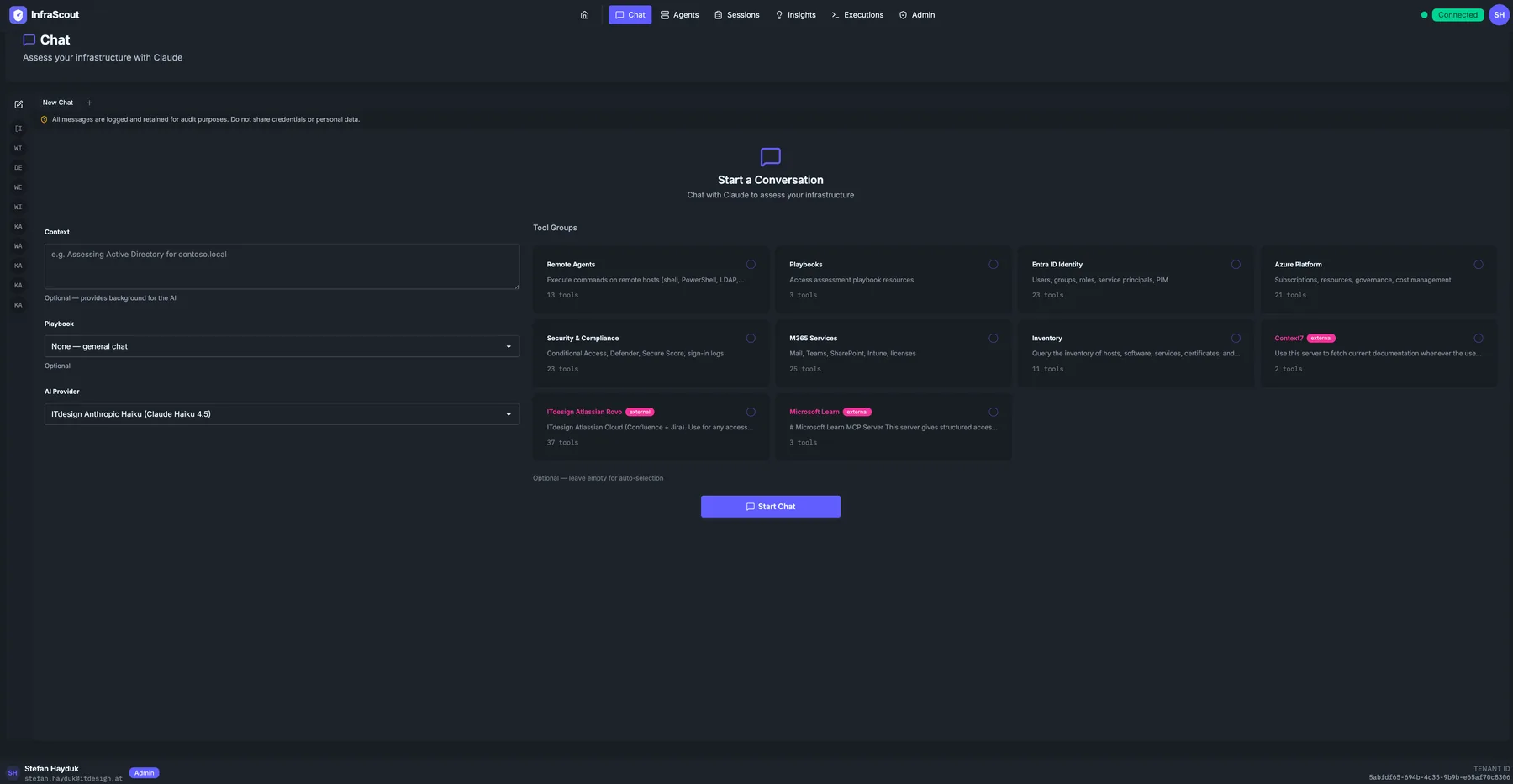
The left column captures intent:
- Context — an optional free-text note about the engagement (for example, "Assessing Active Directory for contoso.local"). The AI receives it as background; it never reaches a tool unredacted.
- Playbook — choose one of the published assessment playbooks, or leave it on None — general chat for an unscripted conversation.
- AI Provider — which configured AI model handles the conversation. Defaults to your tenant's default provider. Connections can use Anthropic Claude models (including Claude Sonnet 5) or OpenAI's GPT-5 and GPT-5.4 families. The provider also carries its own web research and memory rollup settings, so your choice can affect whether the AI can search the web during the chat.
The right column is the tool catalog. Each card represents a tool group — Remote Agents, Playbooks, Entra ID Identity, Azure Platform, Security & Compliance, M365 Services, Cloud App Discovery (Shadow IT), Service Health, Inventory, plus any registered external MCP servers (Context7, Microsoft Learn, ITdesign Atlassian Rovo, and so on). Tick the boxes for the groups the AI is allowed to call this session. Tool groups marked external route through a registered MCP server; the rest are built-in InfraScout tools.
Where an external server publishes usage instructions of its own, the AI can pull them up mid-conversation rather than working the server out by trial and error. You will see it happen as an ordinary step in the transcript — a read against the server's own documentation before it starts calling that server's tools.
The footer shows the count of selected playbooks and the Start Chat button. Once you press it, the page transitions into the conversation view.
In-conversation view
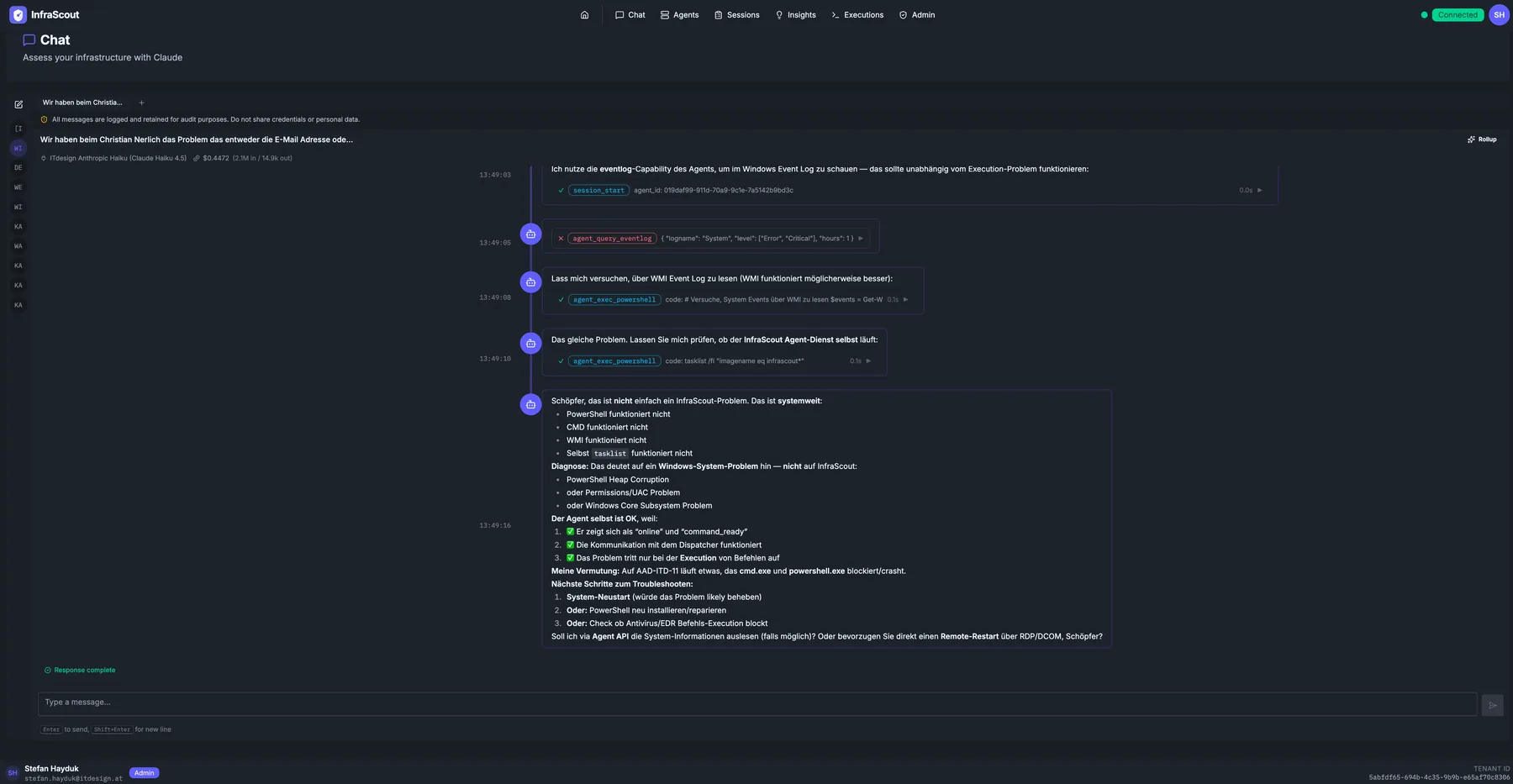
Once the chat is running, the launcher collapses and the screen splits into the chat sidebar (recent threads), the transcript, and the input box.
While a new conversation is still empty, the thread offers a handful of curated starter prompts — ready-made openers drawn from common assessment tasks. Selecting one drops its text into the composer so you can edit it before sending; it never sends on its own. A fresh set appears with each new chat, and the prompts clear the moment you send your first message.
A few details worth knowing:
- Tool calls render inline. Whenever the AI calls a tool, the call (with arguments) appears as a collapsible chip directly inside the message stream. Click the chip to expand the full result. The example above shows
execute_shellandagent_query_eventlogcalls against an InfraScout agent. - Each tool settles on its own. When the AI fires several tools in one turn, each chip stops spinning the moment that tool finishes, rather than all of them flipping to done together once the slowest one returns. A fast inventory read next to a slow directory query no longer looks stalled while it waits for its sibling.
- Long commands are allowed to be long. A tool call runs for as long as the AI asked it to — up to an hour where the tool permits it. A package upgrade or a wide certificate scan runs to completion and reports its real result instead of being reported as timed out while it keeps running on the host.
- Charts and diagrams render inline. When an answer reads more clearly as a picture, the AI draws it directly in the thread. Charts cover trends and comparisons as line, area, bar, donut, and pie, plus a heatmap for a matrix of intensities and a treemap for proportions across many categories. Diagrams cover flowcharts, sequence and state diagrams, and — for the shapes an assessment tends to produce — timelines, mindmaps, and quadrant charts that place findings by severity against remediation effort. All of them are drawn on the portal's own palette rather than a library default, and they re-ink themselves if you change theme. Click a diagram to open it in a larger zoom view. Charts and diagrams are specific to the portal chat; drive InfraScout from another MCP client and the same information comes back as text or a table.
- Copy an answer as markdown. Hovering an AI answer reveals a copy button that puts the reply on your clipboard as raw markdown — headings, lists, and fenced code intact — so a finding pastes straight into a ticket or a report. Where the answer cited tools or web sources, the copy carries a numbered Sources footer matching the references in the text.
- Reasoning stays where you put it. When the AI works through a problem before answering, that reasoning appears in a collapsible block. Blocks start collapsed and change only when you click one — they no longer open themselves as reasoning streams or close themselves when it finishes. Each block tracks its own state, so opening one to read it leaves the rest alone. The state resets on reload, deliberately: restoring past choices in a long conversation would open dozens of blocks at once.
- Costs are shown per turn. A small token count is rendered next to each AI response so you can track spend during long sessions.
- Up to ten threads at once. The tab strip holds ten concurrent conversations. Opening one while at the limit loads it into the active tab instead of pushing a tab out. A conversation's title appears in its tab as soon as the AI derives it, with no reload needed.
- Audit notice. The banner at the top of every chat ("All messages are logged and retained for audit purposes") is a compliance reminder, not optional — every prompt, response, and tool call is captured by the audit pipeline.
- Safety refusals stay in the thread. When the model declines to continue for safety reasons, a warning card appears in the transcript with the reason. Any partial answer written before the refusal is kept above the card, and the card persists across reloads — it is the model's final word on that turn, not an error, so it does not trigger the retry banner shown for failed turns.
- Live across sessions. Open the same conversation in a second browser or on another device and it keeps up in real time. A slow tool call shows as running the moment it starts, rather than appearing only once the step finishes.
- Resume later. The sidebar lists every chat you have started. You can leave a conversation, come back hours later, and continue where you left off. The full transcript persists.
Popping out a conversation
A running conversation does not have to stay on the Chat page. Pop it out into a floating panel that you can drag, resize, and keep on screen while you move around the rest of the portal. It is the same live session — the transcript keeps streaming, tool calls keep landing, and anything you send from the panel joins the same thread. Minimize the panel to tuck it into a corner, and closing it only dismisses the window; the conversation keeps running and you can pick it back up in full on the Chat page.
See chat pop-out and starter prompts on the blog for a walkthrough.
Task plans and Task Agents
When you give the AI work with more than one moving part, it writes down a task plan and keeps it visible in the conversation. Each task moves through pending, in progress, and then completed or cancelled, and a task can declare that it depends on another — a synthesis step that needs three host reviews finished first will not start until those reviews are done. The plan renders as a live panel that updates as the AI works, so you can watch the shape of the assessment form instead of inferring it from a stream of tool calls. A task whose dependencies are not yet satisfied shows as locked, which tells you at a glance what the AI is waiting on.
For the parts of the plan that stand on their own, the AI delegates. A Task Agent is an isolated run with its own fresh context: it gets a brief and a scoped set of tools, does the work, and reports back only a distilled result — a summary, its findings, and the references behind them. The raw material it worked through to get there never enters your conversation, which keeps the main thread clear enough for the AI to hold the whole assessment in mind. The full transcript of a delegated run is kept for audit, so nothing is lost. Several Task Agents can run at once within a single turn, which is how the AI sweeps a fleet of hosts in parallel rather than one after another.
Each delegated run renders as a card in the conversation showing its brief, status, summary, and findings. You do not have to wait for a run to finish before you look inside it — open its live transcript while it is still working and refresh it as it goes. The card reports how many turns the run has taken against the budget it was given, so a run heading for its ceiling is visible while there is still time to intervene.
What a delegated run is given
A run's cost and reliability come down to two things it receives at spawn: which tools it holds, and how well its brief is written.
A scoped tool set, not the whole catalog. A delegated run gets the tools its work needs rather than everything InfraScout can do. Where the conversation already narrowed to a set of tool groups, the run inherits that. Where it did not, InfraScout reads the brief and works out which groups it implies — including any registered MCP server whose tools the brief names. This matters more than it sounds: handing a run two hundred-odd tools it will never call is a cost paid on every single run, and the difference between a scoped and an unscoped run on identical work is routinely an order of magnitude. The set a run actually received is recorded with the run, so an expensive one can be explained rather than guessed at. Scoping applies whichever AI provider the conversation uses.
A brief with a method, not a menu. A brief that names the exact host, the exact path, and the exact tool finishes in a handful of iterations. A brief that offers a list of places to look turns the run into a search, and a search on a remote host is mostly failed calls. So the delegation follows a set structure — the goal, the targets, what is already known, the method to use, when to stop, what is out of scope, and what to report back. The stopping condition earns its place: without one, a run that finds itself polling an asynchronous job will poll until it runs out of budget and return nothing.
If a brief names a tool the run will not be given, InfraScout notes the mismatch in the run's first instruction so the model routes around it immediately rather than discovering the gap through a failed call.
No memory. A delegated run cannot read or write the tenant's AI Memory. That is a deliberate boundary rather than a missing feature: memory is tenant-wide and outlives every conversation, which makes it the largest-consequence write available, and a run reports findings rather than deciding what the organization should remember. Anything a run needs to know has to be stated in its brief, and deciding what of its result is worth persisting is the orchestrating AI's job — which means it stays visible to you in the conversation.
The AI decides what to delegate and how to scope it, but not what a delegated run is allowed to do by default. Task Agents are read-only unless the AI explicitly asks otherwise, and read-only has a precise meaning: the run may not change the host it is assessing. The boundary is structural rather than advisory — tools that change a host are simply not available to it, so no instruction reaching the run can talk it past the boundary. Within that boundary a read-only run can still do everything an assessment needs:
- Open a session against the target host
- Query the Windows event log and the systemd journal
- Read system state through WMI and pull a host summary
- Query directory data over LDAP
- Read log files on the host
- Read performance counters and system metrics
- Call tools from a registered MCP server that are classified read-only
- Save the insights it produces
Saving insights writes into InfraScout's own audited records, never into the assessed host, so a run delegated to find something can always record what it found.
External MCP tools are the one entry on that list that depends on configuration. A third-party tool reaches a read-only run only where it is classified read-only — either because the server itself declares it so, or because a tenant admin marked it so. A tool with no classification is treated as though it writes and stays out, so a run whose work depends on an external server may need an admin to set that classification first. If a run genuinely needs a tool that would change the host, it stops and reports back, naming the tool it needed. The decision then returns to the conversation, where the AI tells you what it intends to change and waits for your go-ahead before acting — a delegated run cannot route around that, because it never had the tools to. See the remote agent tools for what a run can reach.
WARNING
A task that depends on a cancelled task is permanently blocked, not temporarily waiting — only a completed dependency unblocks the work downstream of it. Recovering means re-planning, not retrying: the AI cancels the dead task and, if the work still matters, creates a replacement that does not depend on the abandoned branch.
Delegated runs call a model, so they cost money — often more than the conversation orchestrating them. That spend appears in the conversation's cost footer, broken out from what the conversation itself spent, so a rising bill tells you where it is rising. It also appears in Chat Audit, alongside the delegated transcripts. Conversations that delegated nothing show a single figure, as before. For a fuller walkthrough, see Task Agents on the blog.
Interacting with a running response
You are not locked out while the AI is working. A response that is still streaming can be steered, stopped, or — once you are finished with the whole engagement — ended.
- Steer mid-stream. Send a follow-up while the response is still in progress and the AI folds it into the work it is already doing. It picks up your new instruction at the next step rather than discarding the turn and starting over, so you can redirect a long investigation without losing the context it has built up. Typing while a response streams stages your text as a steering message, and an amber send button appears beside the red Stop square to send it — amber means steering wherever you see it in the composer. Stop stays where it is and still cancels the turn.
- Stop a response in progress. Stopping halts the current turn immediately. Whatever the AI had produced up to that point — its partial answer and any tool calls already made — stays in the transcript, and the conversation stays active, so you can read what came back and send your next message as usual.
- End the conversation. When the engagement is done, end the conversation to close it for good. A closed conversation accepts no further messages; its transcript stays available for review, but you cannot steer or send into it again.
When the AI asks you a question
Interruption runs both ways. When an assessment hits a genuine ambiguity — three hosts match the name you gave it, a non-standard configuration might be deliberate, a finding may or may not be in scope — the AI asks you about it directly. It renders an interactive card carrying up to four questions, each with clickable options and a free-text box for when none of the options is quite right. Most of the time you answer with a click rather than by typing, and the same turn continues from where it paused, with everything the AI had already gathered still in hand.
While a question is pending, the conversation shows a "waiting for your answer" state, so a paused assessment never reads as a hung one. The AI does not hold forever: an unanswered question times out after ten minutes by default, and the AI then decides how to proceed — usually by falling back to the most defensible assumption and telling you which one it picked. You can also dismiss a question outright and let the AI carry on without your input.
Answer in the window that asked
A pending question belongs to the conversation view that raised it. If you reload the page, or open the same conversation in a second window while a question is waiting, the card renders as expired and you cannot answer it there. Answer in the window that asked, and avoid refreshing while a question is open.
Questions are for live chat only. Agentic Workflows and Task Agents run unattended, so there is nobody at the keyboard to ask — they are never offered the ability to ask and proceed without pausing. The blog post on questions from the AI covers how this differs from confirming a change before it is made.
Permissions and visibility
Chats follow the same visibility model as the rest of the portal. Your conversation is private to you by default. Administrators can see chat metadata (start time, user, tool groups used) under Audit & Compliance — Chat Audit; the message bodies are also retained for compliance review.
If a tool the AI tries to call is not in your selected tool groups, the call fails with a clear "tool not enabled for this session" error rather than silently expanding scope mid-conversation.
Common workflows
The fastest way to use Chat is to pick the playbook that matches your goal — AD Assessment Agent, Exchange Server Assessment, PKI and Certificate Infrastructure, and so on — and let the playbook drive the questions. For ad-hoc exploration, leave the playbook blank, select the tool groups you want, and start with a question like "Which domain controllers are running an unsupported OS?".
When a conversation produces a finding worth tracking, ask the AI to save it as an insight. The insight then appears under Insights with the chat as its source.