Connectors (Admin)
A connector is a single Microsoft Entra ID connection — a tenant, a client ID, and a credential — that InfraScout uses to talk to a tenant. Connectors come in two types: an identity connection that keeps the Users and Groups directories in sync, and assessment connections that the AI's Microsoft Cloud tools target on demand. Register the app once in Entra, following the canonical Connecting Entra ID guide, then add the connection here.
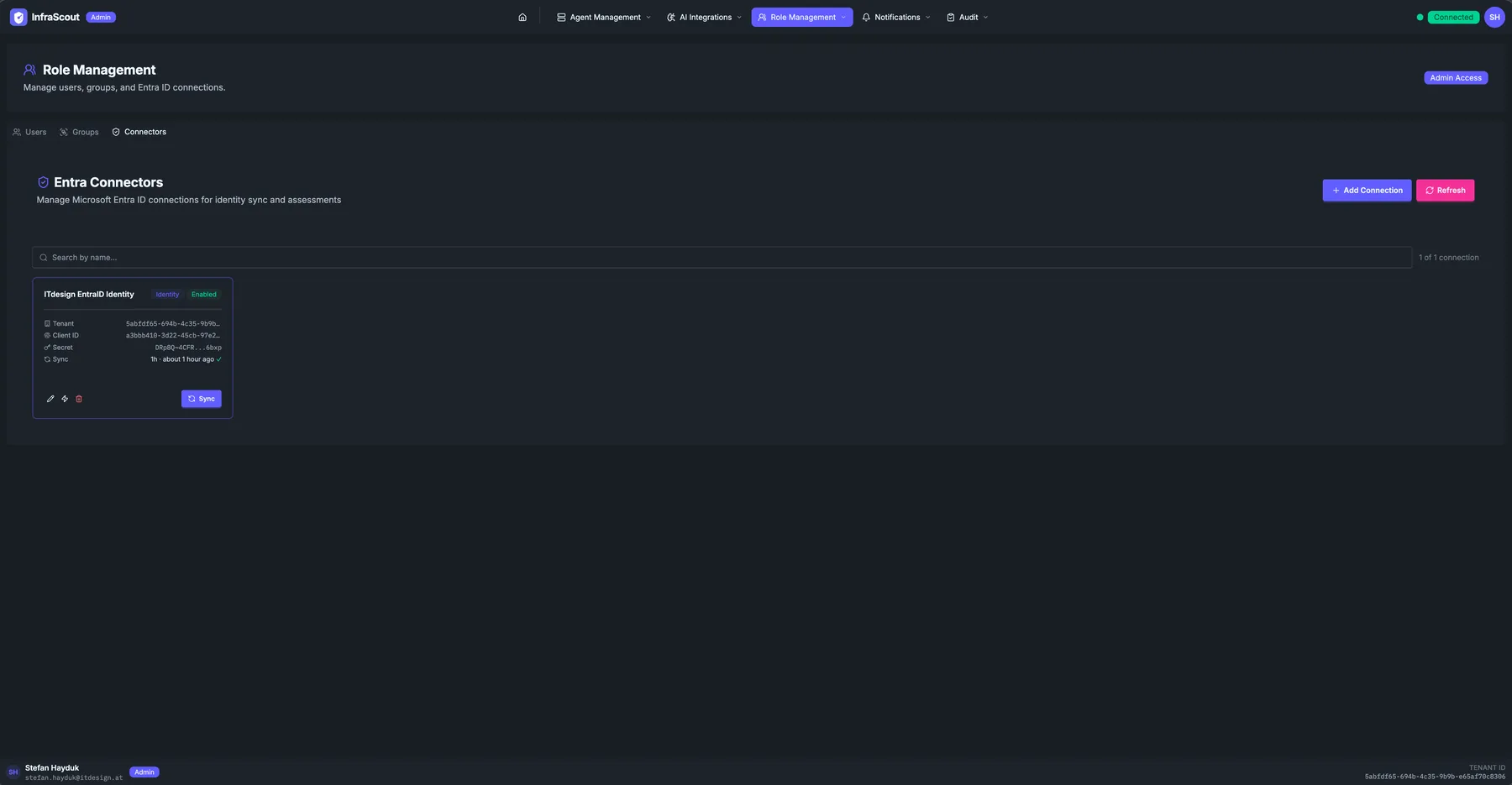
Connection types
Every connector is either identity or assessment, shown as a chip on the card.
An identity connection is the default tenant. There is exactly one of them, and the AI's Microsoft Cloud tools auto-resolve it when you omit connection_id — so most assessments never need to name a tenant explicitly. The identity connection is also the only one that runs the scheduled directory sync, populating the Users and Groups directories that visibility lists and access policies depend on.
An assessment connection targets an additional tenant on demand — for example a partner tenant in a GDAP scenario. Assessment connections do not sync a directory and carry no sync schedule; they exist purely so an MCP tool can be pointed at that tenant by passing its connection_id. List the configured tenants with entra_connection_list when you need the right ID.
Page layout
The page sits under the Role Management header alongside Groups, Users, and Service Accounts in the tab strip. Add Connection and Refresh buttons sit above the list, and a free-text search filters by connection name, with the count beside it reflecting the active filter. The body is a card grid — in a single-tenant deployment it shows one identity card.
Card contents
Each card carries the connection metadata: the connection name, a type chip (Identity or Assessment), a status chip (Enabled or Disabled), the Entra tenant ID, the client ID InfraScout authenticates as, and a masked credential hint for identification.
Identity cards add a sync line that shows the configured interval alongside the last run as a relative timestamp — a green check on success, a red mark (with the underlying Graph error on hover) on failure, or Never synced before the first run. Assessment cards omit the sync line entirely.
Card actions
The action row offers Edit, Test connection, and Delete on every card. Identity cards add a Sync button that triggers an on-demand directory pull.
Use Edit to rename the connection, rotate the secret, adjust the sync interval, change the scoping filters, or toggle the connection between enabled and disabled — there is no separate enable/disable control on the card; the Status toggle lives in the Edit dialog. Test connection runs a live probe against Graph and reports success or failure without saving anything. Delete removes the connection after a confirmation prompt and cannot be undone.
WARNING
Deleting an identity connection stops the directory sync. The Users and Groups directories keep their last-synced snapshot until you reconnect, but they will drift from Entra in the meantime.
Sync schedule
The identity connection runs a background sync on a configurable interval. Choose every 5 minutes, every 15 minutes, every 30 minutes, or every hour in the Edit dialog; the chosen interval appears on the card. Between scheduled runs the sync is incremental — it pulls only what changed since the last pass — so a short interval is inexpensive.
Press Sync on the card to force an immediate run after a fresh hire or a termination, rather than waiting for the next scheduled pass. The affected directory rows update on the next page reload.
Scoping the sync
By default the identity connection syncs every user and group in the tenant. You can narrow that with optional OData filters in the Edit dialog — a User Filter and a Group Filter, each limiting which directory objects the sync pulls. Use them when you only want a subset of a large tenant reflected in InfraScout.
Each non-empty filter must pass a Test before you can save. The test issues a live, single-result query against Graph so Microsoft itself confirms the filter is accepted; editing the filter text afterward invalidates the result and requires another test. This catches a malformed filter at configuration time instead of letting it silently break the next sync.
Filters force a full re-sync
Setting or changing a filter switches that resource from incremental to a full pull on every cycle, and the next run re-populates the directory from scratch rather than applying an incremental update. Expect the run immediately after a filter change to take longer than a steady-state sync.
Group membership is scoped further: the sync resolves members only for the groups that your visibility rules actually reference, keeping membership data aligned with the group-only visibility model used across the Users and Groups tabs.
Rotating the secret
Rotation is a single edit: open Edit, paste the new secret, and save. Leaving the secret field blank keeps the current credential, so you only ever enter a secret when you intend to change it. The new secret takes effect on the next sync or tool call, so coordinate the swap with whoever rotated the app registration on the Entra side, and use Test connection afterward to confirm the new credential works.