MCP Servers
External MCP servers extend InfraScout's tool catalog without touching its codebase. Anything that speaks the Model Context Protocol — a vendor server like Context7, an internal Confluence or Jira bridge, a firewall vendor's own server, your own custom build — can be registered here, and its tools immediately become available as a tool group at chat start.
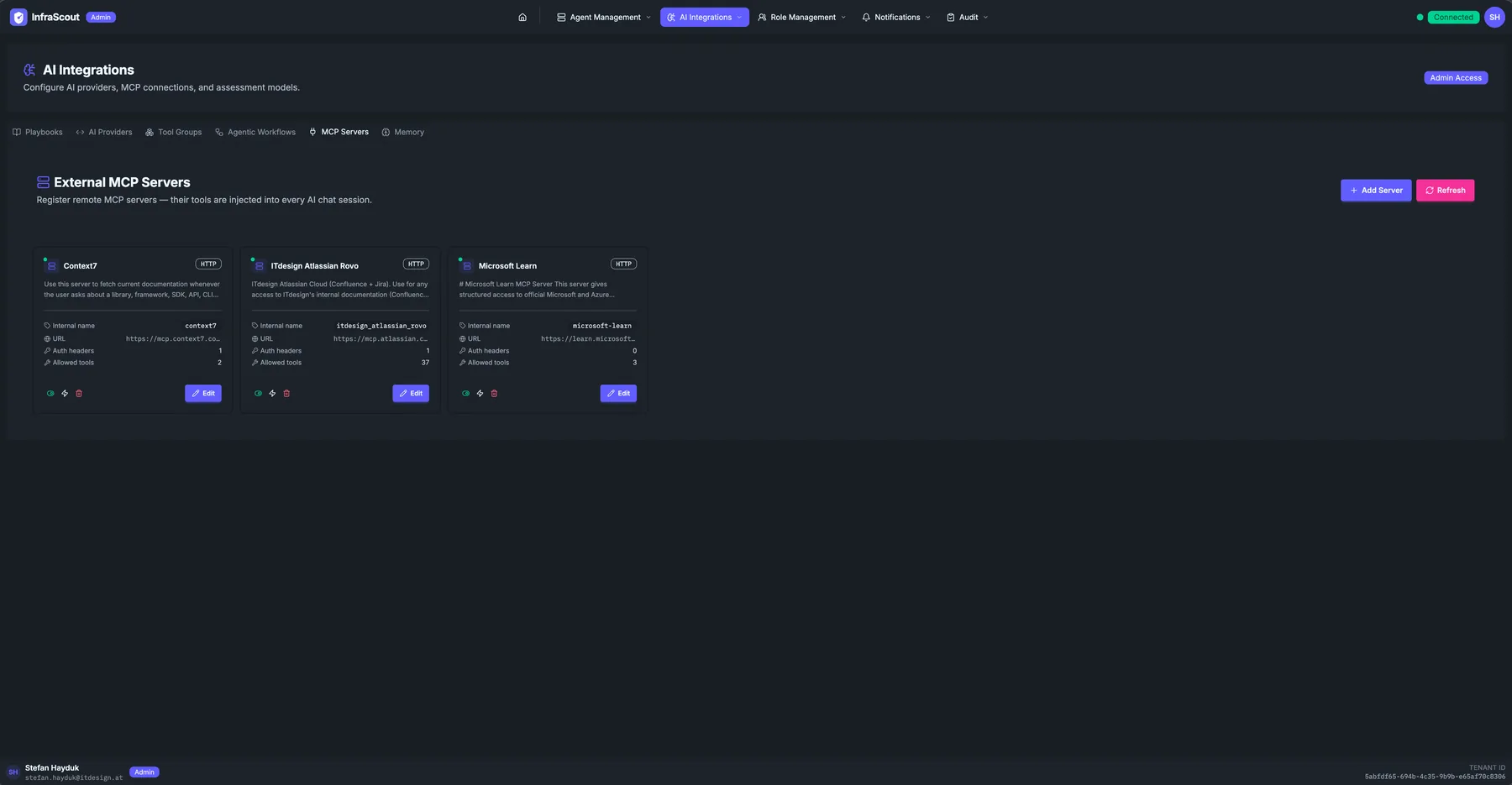
Two Ways to Reach a Server
The first decision on any registration is who dials the connection, because that determines what the server can be.
InfraScout dials it. The classic case: a server published on the public internet, reachable from InfraScout over HTTPS. You give it a URL and whatever authentication it needs, and InfraScout connects directly. This is the right choice for vendor and SaaS servers.
One of your agents dials it. For anything inside your network, InfraScout cannot reach the server and should not be asked to. Instead you nominate an agent as the host, and that agent makes the connection from inside the network on InfraScout's behalf. Tool calls travel to the agent over the same mutually authenticated channel every other command uses, and the agent forwards them to the server. Nothing needs to be published, no inbound firewall rule is required, and the server never becomes internet-reachable.
Agent hosting covers two shapes. The agent can run the server as a child process — a command it launches and supervises locally, the ordinary way MCP servers ship — or it can connect out to a server already running elsewhere on that network, over the same HTTP transports InfraScout itself would use. Either way the server appears in the portal as one registration and its tools appear in chat identically.
Agent hosting is Linux-only today
An agent must be running on Linux to host MCP servers. Windows and macOS agents connect to InfraScout normally but do not advertise the hosting capability, so they cannot be nominated as a host.
Hosting a Server on an Agent
Hosting is off until an operator turns it on, on the host itself. This is deliberate: hosting means the agent launches processes or opens outbound connections, so enabling it is a decision made on the machine rather than remotely from the portal.
On the target host, an operator runs the agent's own command to enable hosting and restart the service:
sudo infrascout-agent mcp-proxy enableThe same command family reports and adjusts the local policy — infrascout-agent mcp-proxy status shows whether hosting is enabled and whether the platform supports it, and infrascout-agent mcp-proxy set adjusts how many servers the host will run and which commands or URLs it will accept. Those allowlists matter: left empty they permit anything, so an operator hosting servers on a sensitive machine should narrow them. The commands say so when you run them.
Once hosting is enabled, the agent advertises the capability and appears as an eligible host in the registration form. Its agent card in the portal also picks up an MCP Proxy badge, so you can see at a glance which hosts are participating.
Registering an agent-hosted server
Choose the hosting agent, then choose the shape. For a child process you supply the command to run, its arguments, any environment variables it needs, and optionally a working directory. For an outbound connection you supply the URL instead.
Environment variables and connection headers are treated as secrets throughout — stored encrypted, shown to you as a masked hint rather than a value, and pushed to the hosting agent only over the encrypted channel. The agent never writes them to disk. That has a practical consequence worth knowing: a host that reboots comes back with no local record of what it was running, and InfraScout re-provisions it on reconnect. Nothing to restore by hand.
URLs must be HTTPS, with one exception. A server listening only on the host's own loopback interface — a container published to 127.0.0.1, say — may be reached over plain HTTP, since the traffic never leaves the machine. The address has to be a literal loopback IP for this; localhost is rejected, because a name resolves at connection time and could be pointed somewhere else after you saved it. A Localhost button in the form fills in the usual form for you.
Watching a hosted server come up
An agent-hosted registration does not go live the instant you save it. The configuration is pushed to the host, the agent starts or connects to the server, completes the protocol handshake, and lists the server's tools. Only then does the registration report itself as running, and only then do its tools appear in chat.
The card tracks that progression with a state badge — pending, starting, running, failed, or stopped — and when something goes wrong, the failure reason is shown inline on the card. A server whose command cannot be found, whose allowlist rejected it, or whose handshake failed tells you which, rather than sitting silently in a non-running state.
A crashed child is restarted automatically, with a backoff that widens between attempts. After several consecutive failures the agent stops retrying and leaves the registration failed until you change something — an endless restart loop against a genuinely broken server helps nobody. Editing the specification is what re-arms it.
Editing a registration's name, description, or tool allowlist does not restart the server: those are metadata, and the running process is unaffected by them. Changing the command, arguments, environment, or URL does restart it, because those define what is running. There is also a Restart action on the card for when you want one deliberately.
Authentication
Static headers remain the simplest option: register the header the server expects — usually an API key or a long-lived bearer token — and InfraScout attaches it to every call. Headers are stored encrypted and displayed as a masked hint.
For servers that speak OAuth, InfraScout can now be a proper OAuth client rather than needing a token pasted in. Pick OAuth as the authentication method and use Connect: the provider's consent screen opens in a popup, you approve the access, and the card shows Connected. Tokens are refreshed automatically in the background, so a working connection stays working without anyone revisiting it.
Two things on the card are worth watching. If a refresh ever fails permanently — consent revoked at the provider, or a grant that expired — the card asks you to reconnect rather than letting tool calls fail with an opaque error. And where a provider states an expiry for the refresh grant itself (Microsoft Entra does; most providers do not), the card shows a Refresh expires line and warns you when that date is within a week. That is the case that would otherwise break a connection with no warning at all.
Servers reachable only from inside your network can use OAuth too. Where the identity provider is itself internal, the OAuth exchange is routed through the hosting agent alongside the tool calls.
Treat a registered server as a privileged dependency
A registered MCP server's tools run with whatever access you gave the server. Rotate its credentials on the schedule you would use for any other integration, keep the tool allowlist as narrow as the work requires, and review the MCP Sessions audit when something looks unusual.
The Tool Allowlist
Every registration carries an allowlist of the tools the AI may call, enforced on every call.
The picker asks what to withhold, not what to permit. A server with no restriction in place paints as all-ticked, and you untick the tools it may not expose. That matches how the policy behaves underneath, where "no restriction" and "an explicit list of everything" are genuinely different states — the first admits tools the server adds later, the second does not.
Three consequences follow from that distinction, and the picker handles each of them for you. Unticking every row is refused, because saving it would mean allow everything — the exact opposite of what the empty column looks like; if you want a server to expose nothing, disable the server. Opening the picker on a server with an exhaustive explicit list and saving without touching anything leaves that list exactly as it was, rather than quietly widening it to admit future additions. And a stored list naming a tool the server has since removed will not collapse into allow everything just because the tools that remain happen to be all of the visible ones.
Some servers publish a great many tools — a firewall vendor's server can expose several hundred — so the picker groups them by name prefix into collapsible sections, each with a select-all checkbox and a count of how many in that group are ticked. Groups start collapsed and expand as you search, so a two-hundred-tool server is something you can actually work through. Tools whose prefix is unique to them collect in an Other section.
Refreshing a server's catalog adds newly discovered tools as ticked only where you have not edited the allowlist yourself. A server whose list you have curated keeps that curation, and new tools stay withheld until you admit them.
Read-Only Classification
Standard users are confined to read-only tools, and so are read-only Task Agent runs. For InfraScout's own tools that classification is known. For a third-party server it has to come from somewhere else.
The protocol lets a server declare each tool read-only, and InfraScout honors that declaration — but in one direction only. A tool declared read-only is admitted to the read-only surface; a tool that declares nothing is treated as though it writes and is excluded. The declaration comes from the third party, so trusting it to permit access is sound only where the third party actively claims the tool is safe. Trusting silence would mean assuming safety no one asserted.
That fail-closed default is correct and also inconvenient, because most MCP servers in the wild ship no declarations at all. A documentation-search server with no write operation anywhere in it can end up entirely invisible to your standard users.
So a tenant admin can override the classification per tool. In the tool picker, each tool can be forced into the read-only surface, forced out of it, or left to inherit whatever the server declared. A Suggest read-only action pre-ticks the tools whose names look like reads, as a starting point you then review — it only fills in the form, and nothing is applied until you save.
An override is a policy assertion, not enforcement
Marking a tool read-only records your judgment that it does not change anything. It does not make that true. InfraScout cannot inspect what a third-party tool does, so an override on a tool that in fact writes will let a read-only caller reach it. You already control the server's existence, its address, its credentials, and its allowlist — this is one more exercise of that same authority, and it deserves the same care.
Saving overrides never restarts a hosted server, and rediscovering a server's tools never clears your overrides — the two are kept deliberately independent, so refreshing a catalog cannot quietly undo policy.
Server Instructions
Many MCP servers publish usage instructions during the protocol handshake — how their tools relate, which to reach for first, conventions their arguments follow. That text used to be collected and then go unused.
The AI can now read it on demand. Rather than injecting third-party text into every conversation, InfraScout offers a tool that fetches one server's instructions when the AI decides it needs them, and lists which registered servers have published any. The AI reaches for it the way it reaches for any other tool, and the result appears as an ordinary step in the conversation. The text is treated as reference material from an outside source, not as instructions InfraScout follows.
Writing your own usage guide
Plenty of servers publish nothing at all, and for those the registration's Usage guide field is where you say what the server is for.
Write what you would tell a colleague: what the server does, which of its tools to reach for first, any convention its arguments follow, and anything about your deployment of it the vendor's own documentation would not know. The AI reads it the same way it reads a server's published instructions.
The guide is yours and it is independent of the handshake. A guide you wrote survives a server that publishes nothing, and rediscovering a server's catalog never overwrites your text. A server card shows which sources it has, so you can see at a glance whether the model is working from your guidance, the vendor's, or both.
Description and usage guide are different fields
Description is a one-line summary for the portal card and the tool-group listing. It is not what the AI reads. If you have been maintaining a long description hoping the model would use it, move that text into the usage guide.
The two halves stay separated in what the AI receives. Your text is presented as first-party guidance from your own administrators; a vendor's published text is presented as material from an outside source and carries a header saying so. A server cannot forge the first-party framing to make its own text look like yours.
Audit
Every call from the AI to a registered MCP server is captured in Audit & Compliance — MCP Sessions: the calling user, the chat, the tool name, the arguments, and the response. Calls to a server hosted on one of your agents are additionally recorded as executions against that agent, categorized so you can filter them apart from shell commands and cloud queries.
A call that cannot be recorded is not dispatched. The audit record is written before the call goes out, so there is no path by which a tool call reaches a hosted server without leaving a trace.
See Also
Registered servers appear as selectable groups in Tool Groups and in the Chat launcher. For which agents can host a server and how to keep them current, see Agents and Agent Updates.