Agents
The Agents page is the user-facing fleet view. Every host that has enrolled with InfraScout shows up here as a card, regardless of OS. Use it to confirm reach before you start a session, to spot an offline host that needs attention, or to look up which agent is running which version.
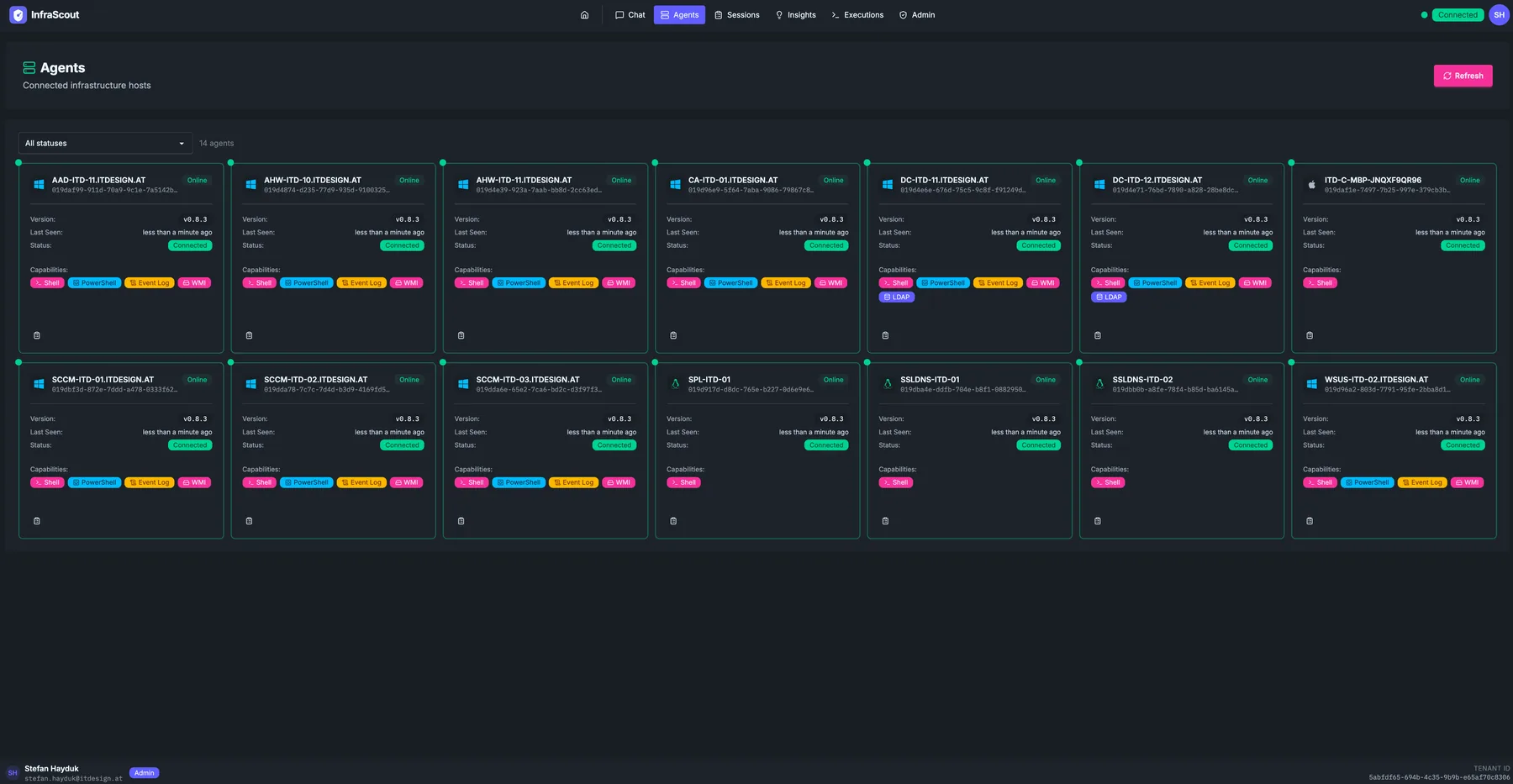
Layout
The page header carries the title, a one-line description, and a Refresh button. Below it sits a status filter and a live agent count. The body is a responsive card grid — one card per host.
Each card surfaces the four facts you actually need at this level of zoom:
- Hostname at the top, with an Online / Offline / Stale chip.
- Version — the agent build currently installed.
- Last seen — relative timestamp from the agent's most recent heartbeat.
- Status — a colored badge (Online, Stale, Offline, Pending) that mirrors the heartbeat freshness rules.
- Capabilities — small chips for each capability the agent advertises (
Shell,PowerShell,Event Log,WMI,LDAP, and so on). The set is OS-dependent and probe-backed, so a chip appearing means the host can actually honor that capability rather than merely being the right operating system for it. Windows hosts typically show the execution and Event Log set; Linux hosts add the journal and performance-metrics chips where the agent can read them, and an MCP Proxy chip where the host is hosting MCP servers.
Click a card to open the agent detail modal. From there you can browse the agent's inventory, recent sessions, and recent executions, or kick off a one-shot command via Chat.
Adding a host
The download dialog hands you everything needed to bring a new host online. Pick the platform and architecture and it produces two copyable commands: one to download the binary — wget on Linux, curl on macOS, Invoke-WebRequest on Windows — and one to enroll it, with your own API address already filled in. No token to generate, nothing to transcribe. Each binary is listed with its SHA-256 hash so you can verify the download before you run it.
See Deploy on Windows, Linux, or macOS for what the enrollment command does and when to use the token path instead.
Filtering and search
The status dropdown filters the grid to a single state — useful when you are chasing all stale or offline agents. There is no free-text search on this page; for more granular querying (by group, by capability, or by playbook coverage), switch into the Admin Agents view.
How freshness works
The Online/Stale/Offline distinction is heartbeat-based:
- Online — heartbeat received within the last minute.
- Stale — last heartbeat between 1 and 5 minutes ago. The agent is still alive but hasn't checked in recently.
- Offline — no heartbeat in the last 5 minutes.
The page stays current automatically: every agent state change pushes through the SSE stream and the affected card flips its badge without a full reload.
What you can't do here
This is intentionally a read-only view for end users. Enrolling a new host, revoking an agent, or moving a host into a different agent group all live in the Admin Agent Management area instead.