Agent Updates
The Updates tab is the rollout dashboard for agent self-updates. Use it to confirm that a release is propagating cleanly across the fleet, to spot agents that are stuck on an older build, and to investigate failed update attempts.
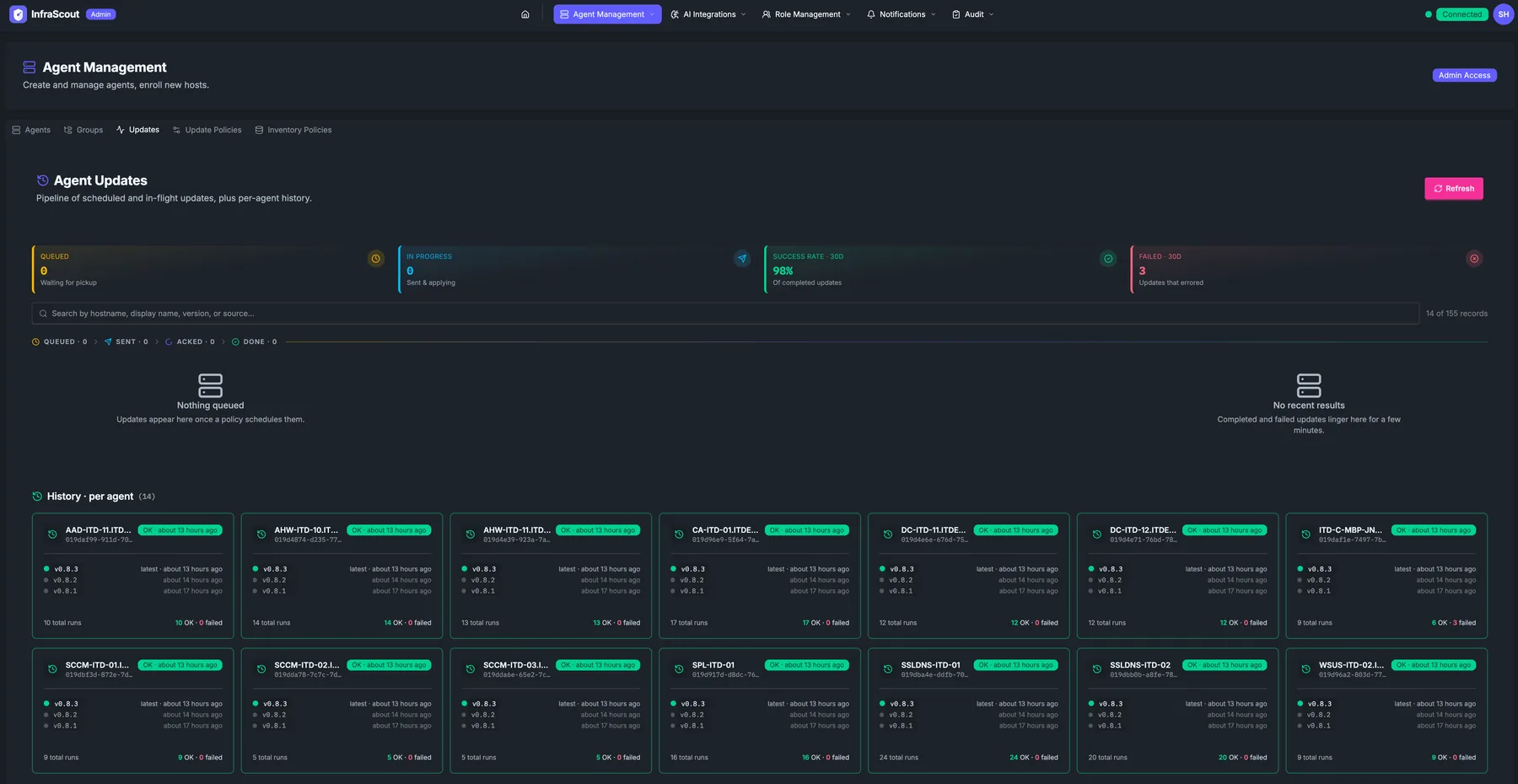
KPI strip
The strip across the top is the live state of the rollout pipeline:
- Queued — updates that are waiting for a policy window to open. The sub-line shows how many are Waiting for window.
- In Progress — updates currently being applied. The sub-line shows how many are Sent & applying.
- Success rate — percent of completed updates that finished successfully. The sub-line shows the count of successful updates in the visible window.
- Failed (24h) — updates that failed in the last 24 hours.
A status chip strip below the KPIs (QUEUED · SENT · ACKED · DONE) breaks the same data down into the four lifecycle stages.
Empty states
When nothing is in flight, the middle of the page shows the two empty-state panels: Nothing queued — Updates appear here once a policy schedules them and No recent results — Completed and failed updates linger here for a few minutes. They both clear automatically the moment activity resumes.
History — per agent
The bottom grid is the per-agent rollout history. Each card shows the hostname, the current installed version, the most recent update row (OK · about 12 hours ago), the count of total runs, and the per-agent success ratio (100% · 1 failed).
Click into a card to see every individual update attempt for that host: the version delivered, the size of the package, the policy that scheduled it, the queued/sent/acked/done timeline, and the agent log if it failed.
Refresh and SSE
The whole page subscribes to the update SSE channel. KPIs and per-agent cards update without a reload as agents move through the lifecycle. The Refresh button is a fallback when you want to force a full reload — it does not trigger any new updates.
Common workflows
Watching a release roll out is straightforward: open the tab right after publishing the new version, watch Queued drain into In Progress, then into the Success rate card. Investigation flips the order — when a per-agent card shows a failure, click in to read the agent log for that update, then check the Update Policies tab to see whether the affected agent's policy is restricting the retry window.