Insights
An insight is a single finding: a misconfiguration, a security gap, an availability concern, or a compliance issue that one of your assessments surfaced. The Insights page is where you triage them.
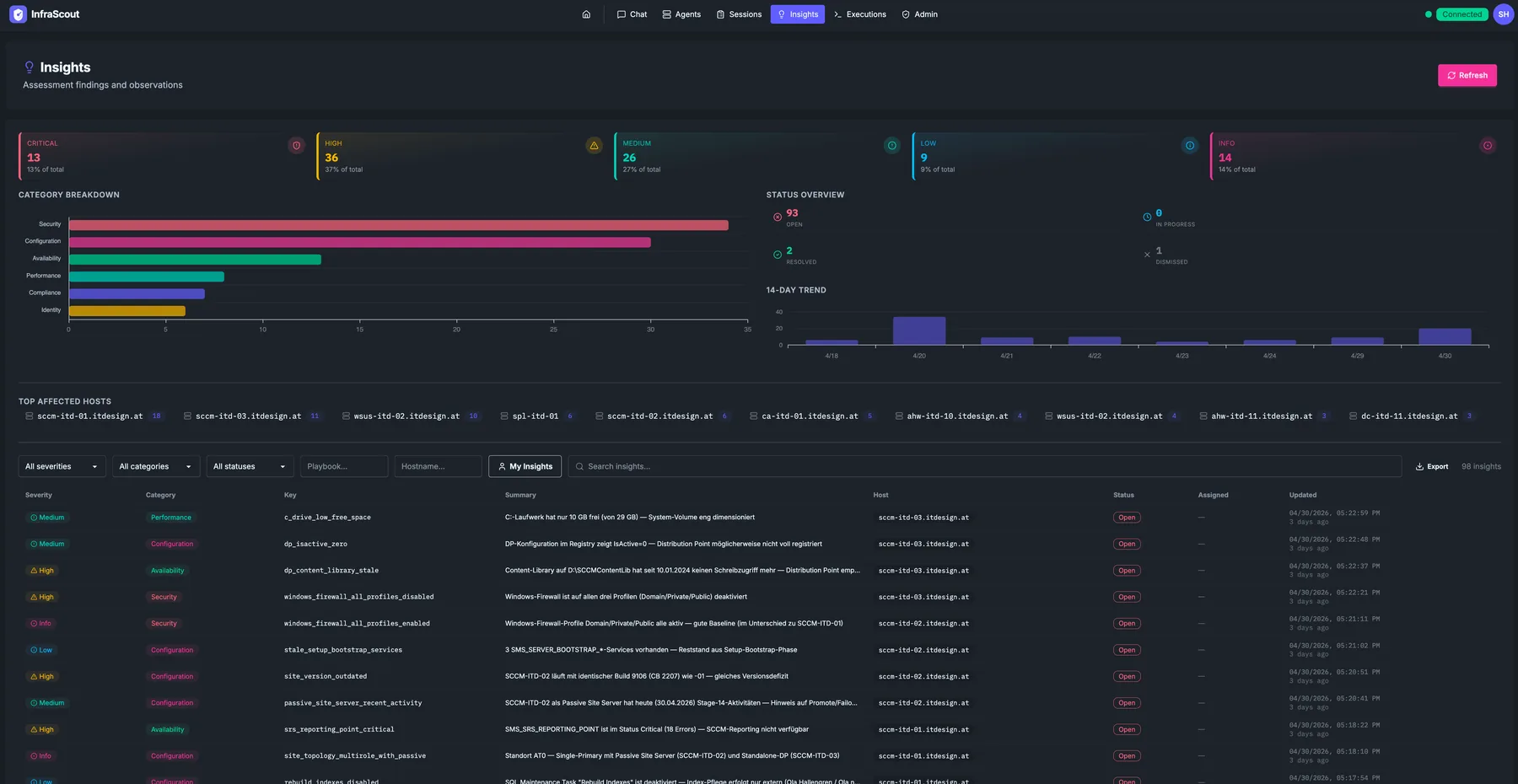
The page opens on active work
The page lands filtered to the findings that still need attention — Open, Acknowledged, and In Progress. Resolved and dismissed findings are not hidden, just not in your way by default: tick either status to bring them back. Clear returns you to this active view rather than to an unfiltered list, since an unfiltered list is rarely what triage wants.
Top strip — counters by severity
The strip across the top is the at-a-glance posture of your environment. Each card shows the open count for one severity level — Critical, High, Medium, Low — plus the share of total findings it represents. Click a card to add that severity to the filter; click it again to remove it. Selections accumulate rather than replace, so critical-plus-high is two clicks.
Category breakdown
The horizontal bars below the counters show the open insight count per category — Security, Configuration, Performance, Identity, Availability, Networking, Compliance, Licensing. The categories come from the playbook that produced the finding and stay stable across runs, so the chart is a useful signal for "where is our biggest backlog". Bars toggle the same way the severity cards do.
Status overview and 14-day trend
To the right of the category bars sit two complementary panels:
- Status overview — shows how findings split across Open, Acknowledged, In Progress, Resolved, and Dismissed. Each box carries an absolute count, and clicking one toggles that status in the filter.
- 14-day trend — opened vs. resolved per day over the last 14 days. A widening gap (opened above resolved) tells you the queue is growing faster than you can clear it.
The counts in the status overview are computed as though the status filter were not applied, which is what makes it usable as a control. Were it filtered like everything else, the default active view would show Resolved: 0 in the very box you click to see resolved findings.
Top affected hosts
Below the charts, Top Affected Hosts lists the hostnames with the most open findings, ranked by count. The chip to the right of each hostname is the count itself. Click a host to filter the table to that host — useful when you are deciding which machine to fix first.
Findings table
The bottom of the page is a filterable, sortable table of every insight visible to your identity. The filter row supports:
- Severity, Category, and Status dropdowns — all multi-select. Tick as many values as you need; the menu stays open while you work and the trigger shows how many are active.
- Playbook dropdown — narrow to findings produced by a specific playbook.
- Hostname text filter.
- My Insights toggle — flip to Assigned to me in one click.
- Search — full-text against title and key.
Arriving from a dashboard card lands you on exactly the filter the card promised — the critical-and-high open findings, one category, or one host. A deep link is an explicit request, so it clears whatever filters you had set rather than combining with them.
Each row shows severity chip, category chip, the key (the stable identifier the playbook uses, like windows_firewall_all_profiles_disabled), a one-line summary, the affected host, the status, the assignee, and the last-updated timestamp. The Export menu on the right offers two outputs for the current filter set — JSON for the raw findings and Generate Report for a Markdown summary. 365 insights in the corner is the total count after filters apply.
Click any row to open the insight detail view with full evidence, remediation guidance, and the chat thread that produced the finding.
Visibility
Insights inherit visibility from the session that produced them. Every row you see is one your identity is allowed to read. The My Insights toggle is the most reliable way to scope to your own assigned work — in personal triage flows we recommend pinning that toggle on.